
Every tool, explained
by the app itself.
53 articles, one per tool in the catalogue. Each one is the same answer the in-app assistant gives, with a badge read from the licence check that actually runs — so nothing here can promise you something the app then refuses.
53 tool articles across 7 categories, plus 10 general answers.
Grouped the way the workspace groups them.
The same 7 headings the tool rail uses, in the same order. A tool sits in the section you would look for it in the app, not in a category invented for this page.
Review
8Organize pages
13Edit & sign
8Convert & compress
5Protect
4Legal
12AI
3What the panels actually look like.
4 illustrated walkthroughs, photographed from the running app rather than drawn. The rest of this page tells you what a tool is for; these tell you which control to press.
Getting a document into the workspace
Four ways in, and the two keystrokes worth learning on the first day.
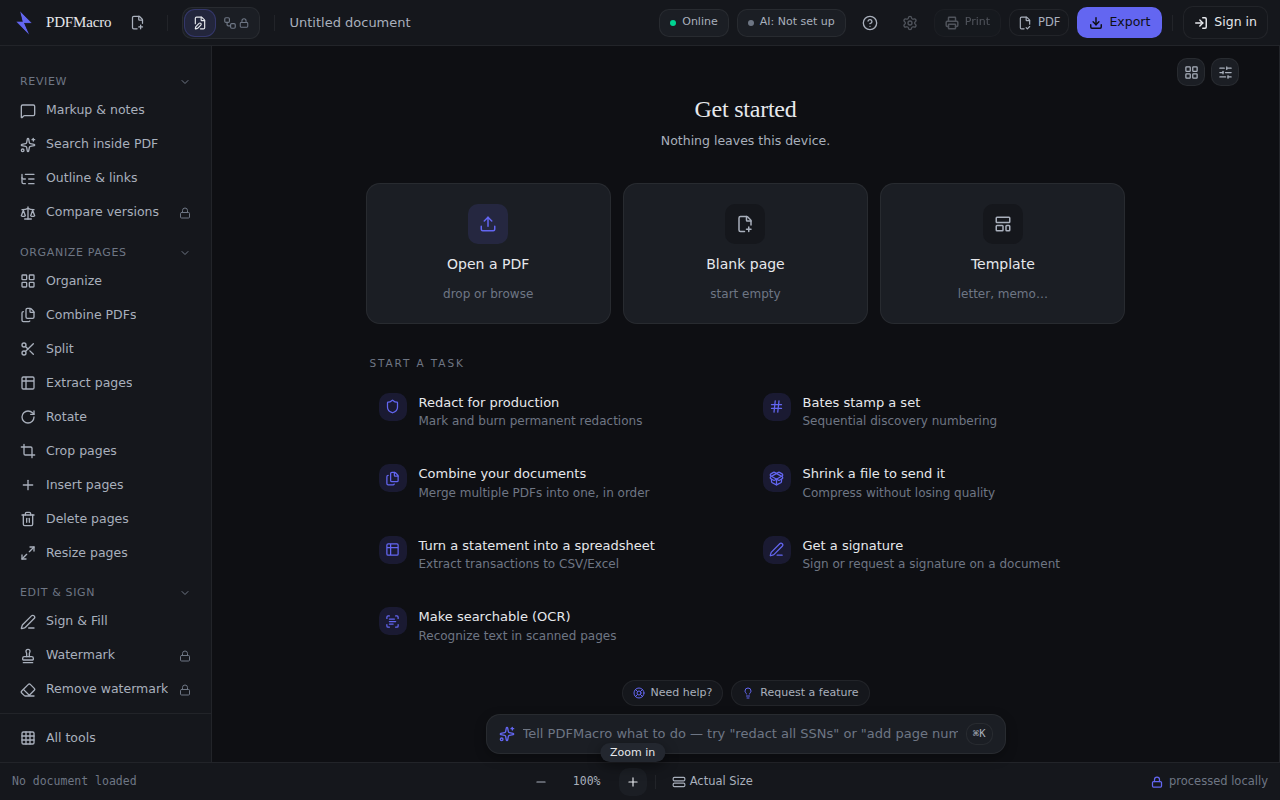
- 1Open a PDF, or start from nothingWith no document loaded the workspace shows three tiles. “Open a PDF — drop or browse” opens your file picker; “Blank page — start empty” creates an empty document; “Template — letter, memo…” opens a picker of built-in layouts.
- 2Or drop the file anywhere on the windowThe whole workspace is a drop target, not just the tile. A dropped PDF opens into the tab you are looking at. Only file drags count — dragging a page inside the Organize grid does not trigger it.
- 3Press O to open, ⌘\ to show or hide the panelO opens the file picker when nothing else has the keyboard — so it will not fire while you are typing in a field. ⌘\ (Ctrl+\) toggles the inspector panel on the right, which is where every tool draws its controls.
- 4Press ⌘K and describe the job⌘K (Ctrl+K) puts the cursor in the command bar along the bottom. Type what you want — the example phrases on each article above are the assistant's own routing examples, and any of them opens the matching tool.
- 5Nothing you open is uploadedThe file is read in the browser. The status strip says so while you work, and the panel of every tool below repeats it at the point where the work happens.
Every step above was read out of the app's own source, and a test fails if the control it names is renamed. The picture is a real capture of the running workspace at 1280 × 800, signed in to nothing and holding no licence — but it is taken by hand, not on every build, so read it as the shape of the panel rather than proof of today's release.
Connecting your own AI.
PDFMacro ships no AI that writes. Chat with PDF, Summarize, Write with AI and Translate run on an AI you connect: your own API key, or a model on your own computer. It is part of Pro. This is the procedure; for where your text goes and why, read Your own AI.
Using your own API key
For the strongest models, from a provider you already use. The text a feature needs goes from this browser straight to that provider, under your account, and they bill you for it. PDFMacro never sees the key or the text.
- 1Get a key from your providerOpenAI, Anthropic (Claude), Google Gemini, or any OpenAI-compatible service such as OpenRouter.
- 2Open Settings → AI and press Check keyFrom the workspace, or from any AI tool's “Connect your AI” card. Choose the provider, paste the key, and press Check key: that click is the only thing that calls the provider, and it lists the models your key can use.
- 3Pick a model and press Use this keyEvery AI feature uses it from then on. The first time a feature sends something, the app asks you first; every request after that is listed in Settings → AI with its size and time, never its text. Forget key removes it from this browser.
A feature says “Connect your AI”
Nothing is connected yet. Press the card's button to open Settings → AI, then add a key or a local server. Find in document and the other free tools work without one.
Your provider refuses
The message is your provider's, in plain words: a key it does not accept, a model it does not know, or a rate or spending limit on your account. Check the key in Settings → AI, or your plan with the provider.
Offline (isolated) is on
Isolated mode blocks every request that leaves the page — to an AI provider and to a local server alike — by design. Turn it off to use AI; the other tools keep working.
Connecting your own Ollama or LM Studio server
For when nothing should leave your machine, and it costs nothing to run. Chat with PDF, Summarize, Write with AI and Translate then send document excerpts to that endpoint — your machine — and the code refuses to send them anywhere else.
- 1Start the server and note its addressOllama listens on
http://localhost:11434by default; LM Studio onhttp://localhost:1234. Paste whichever you use into the AI panel's local server section, which is collapsed by default. - 2Tell the server it may talk to this pageThis is the step people miss. A browser will not let this page read another origin's server unless that server says it may. Set
OLLAMA_ORIGINSto this app's origin and restart Ollama; in LM Studio, enable CORS in the server settings. - 3Press Test connectionThat click is the only thing that fetches — nothing dials out on page load, on import or on a timer, and a saved endpoint is remembered as text until you press it again. The three outcomes are below.
- 4Install a model, if the server has nonePDFMacro never pulls models onto your server. When it finds none it prints the command for you to run yourself, sized for the machine it detected:
ollama pull qwen2.5:7b4.7 GB · your machine can run a 7B model comfortablyollama pull llama3.2:3b2.0 GB · a good balance for this machineollama pull llama3.2:1b1.3 GB · small enough to run smoothly here
connectedPress “Use this server”. Chat with PDF, Summarize, Write with AI and Translate will run there from then on, and nowhere else — every request URL is checked against the endpoint you configured before it is sent.
origin-rejectedThis is the common one. For Ollama, set OLLAMA_ORIGINS to this app's origin and restart it. In LM Studio, turn on CORS in the server settings. Then press Test connection again.
unreachableCheck the server is running and the port matches. If the page is served over HTTPS from a public address, the browser's private-network rules can stop the request before it leaves, whatever the server is configured to accept.
The two small helpers that run on your device
These are not your AI and need none connected. They download once, live in your browser's storage on this device, and run in the same tab as the document. Neither writes text. The names are the readiness panel's own.
Understanding what you type in the command bar, and Pre-discovery search
Finding names and other sensitive details in a document, and Privilege review
Together they come to ~155 MB, and each is asked for separately the first time a feature needs it. Clearing site data removes them, and you are asked once more rather than charged the bandwidth silently.
AI output can be wrong, and a machine translation can change meaning.
How good the answers are is your model's doing: a large model from your provider is far more capable than a small one on a laptop, and what a local model can do depends on your machine. Check against the document — Chat cites the pages it used, and Translate names the pages where a number changed. Where your text goes, in full.
Running the same steps again, unattended.
Workflow Builder lets you chain existing PDFMacro tools into a reusable pipeline — for example OCR, sanitize, Bates, watermark, protect, or eligible redaction steps — then save and run that workflow again. Free users can preview the builder; saving and running workflows require Pro.
Branch, retry and variables
The three controls that turn a list of steps into something you can point at five hundred files. Every bound and option name below is read from the modules that enforce them, so this cannot drift from what the builder will accept.
If… then / otherwise
Runs one of two short sequences, then carries on with the rest of the workflow.
A branch is a detour, not a fork the document never comes back from: one input, one output, two ordered lists in between. Branches may nest up to 3 deep. The same conditions drive the 3 flow steps — Continue only if…, Fail this file if…, and Stop here — which end a run cleanly, refuse the file, or stop at that point with a reason for the summary.
The conditions you can test: Always run · If document is scanned (no text layer) · If document has a text layer · If sensitive data (PII) was found · If privilege markers found · If file size exceeds threshold (MB) · If this text can still be found (whole document) · If the filing check finds a problem.
Retry
Try a step again when it fails, before anything else is decided.
The count is EXTRA attempts, not total attempts. The maximum is 5, so a step runs at most 6 times. The wait between attempts goes up to 60000 ms and is interruptible — cancelling a run does not leave it sitting inside the wait.
Retries come first; only the final failure reaches the step's on-error setting. “Continue” carries the previous bytes into the next step and records the failure, which is right when one malformed file in five hundred should not cost you the other four hundred and ninety-nine. It is refused on the pattern-redaction step (redact-pattern): a redaction may not be shrugged off.
Variables
Capture one value from a step and write it as {{name}} in a later step's text.
Scope is the whole pipeline, in execution order, last write wins — including a value stored inside a branch. An unknown name is never substituted with an empty string; it survives as a visible placeholder and the run warns, because a redaction step searching for nothing would otherwise report success.
- Whether this step's condition passed — “true” or “false”
- The sentence the condition produced — “0.4 MB ≤ 5 MB”
- The note this step reported — “14 matches redacted”
- How many pages the document has at this point
- How large the document is at this point, in MB
- Whether the document has a text layer — “true” or “false”
- How long this step took, in milliseconds
- The size of this step's output, in bytes
- Something this step measured — pick which below
Price, privacy, offline, and what this does not do.
These are the assistant's own answers to the questions that are not about one tool — including the one where the answer is “no, and deliberately so”.
Pricing
PDFMacro has a free plan with a free account: the everyday PDF tools (view, organize, merge, split, extract, rotate, crop, compress, convert, protect, unlock, manual redaction, basic Sign & Fill), 3 downloads a day, and a small PDFMacro line on each page of a saved PDF. Everything else is one lifetime purchase of $79: Workspace and Workflows, every tool and every automation, no line and no daily limit, sensitive-data detection, Privilege review, Exhibit Binder, Mail Merge, Bates, OCR, batch processing, and AI and translation on your own key or local model. No subscription, and no AI add-on from us. A full refund within 30 days, no questions asked.
Offline use
With Pro, yes — PDFMacro runs in your browser and every tool works offline once the page has loaded. A free account needs a connection to save, for its daily count. The on-device AI helpers (sensitive-data detection, smart split, Privilege review) download a small model the first time online, then run locally. Chat, summaries, writing and translation need your AI: your provider online, or your local model running.
Privacy
Your PDF stays on your device. Every tool — redaction, OCR, AI detection, search — runs in this browser, and files are never uploaded to PDFMacro. The one exception is your choice: Chat with PDF, Write with AI and Translate send the text they need to the AI you connected — your provider, under your key, or your own computer with a local model.
AI models
PDFMacro ships no model that writes. Semantic search uses a small on-device embedding model (MiniLM) and named-entity detection an on-device NER model; both download once, then run offline. Chat with PDF, summaries, Write with AI and Translate run on your own AI: an OpenAI, Claude or Gemini key, any OpenAI-compatible service, or Ollama / LM Studio. Set it up in Settings → AI.
Pro vs Free
Free needs a free account: viewing, organize, combine, split, extract pages, rotate, crop, insert/delete/resize pages, remove blank pages, compress, convert, images ↔ PDF, protect, unlock, repair, manual redaction — drawing the boxes and burning them — basic sign & fill, comments, highlight, outline, page numbers, header/footer and the built-in templates, with 3 downloads a day and a small PDFMacro line on each page of a saved PDF. No AI on the free plan. Pro removes the line and the limit and adds the trust suite (verifiable redaction with a certificate, AI detect sensitive info, pattern/bulk redaction, sanitize, document fingerprint, sign & certify), AI on your own key or local model (Chat with PDF, summarize, Write with AI, Translate and the conversational assistant), the power tools (OCR, watermark, remove watermark, Bates, mail merge, form field recognition, compare, smart table extract, accessibility tags, custom font upload) and the full legal pack (Privilege review, pre-discovery search, Exhibit Binder, Table of Authorities, Citation Hyperlinker, filing check).
Supported formats
The workspace opens PDFs directly. Convert exports to Word-style output and archival PDF/A. Images ↔ PDF converts JPG/PNG images to PDF and can export PDF pages back to images.
Account & sign-in
You can open files and use the free tools without an account; saving a file on the free plan asks you to sign in to a free account, and the file waits while you do. Pro features and syncing your licence across devices also need it. Sign in from the account menu; password reset lives on the sign-in screen.
Security architecture
PDFMacro processes documents entirely in your browser, so there is no server-side copy to compromise. Passwords you set with Protect encrypt the exported PDF itself. The Security Architecture page explains the model in detail.
Data retention
Documents are held only in this browser tab for the duration of your session, plus a local cache (IndexedDB) for the recent-files list and sidecar edits so you can resume. Nothing is stored on any server. Clearing browser storage removes everything.
Sending documents and collecting responses
PDFMacro doesn't send documents or collect responses, and that is deliberate rather than unfinished. Responses have to arrive somewhere, and PDFMacro doesn't run a somewhere — everything happens on your device, which is the whole point of the tool. Export the form and use a service you control to distribute it. What PDFMacro can do is Sign & certify: flatten the signed document and issue a certificate recording its SHA-256 fingerprint, so whoever receives it can check the file has not changed since.